Spotify Playlist Dating Red Flag Analyzer
2025
CLI App
For Fun • Production • Data Pipeline • Open Source • Web Scraping • Automation • Python • Selenium • Prompt Engineering • Gen AI Integration • Gemini API • Experimental



Overview
This project started from a simple, silly question: what does your Spotify playlist say about you as a dating prospect?
The answer, apparently, is a lot.
Built mostly so my friends would actually use it, and send me their results at midnight with some hilarious combinations of emojis.
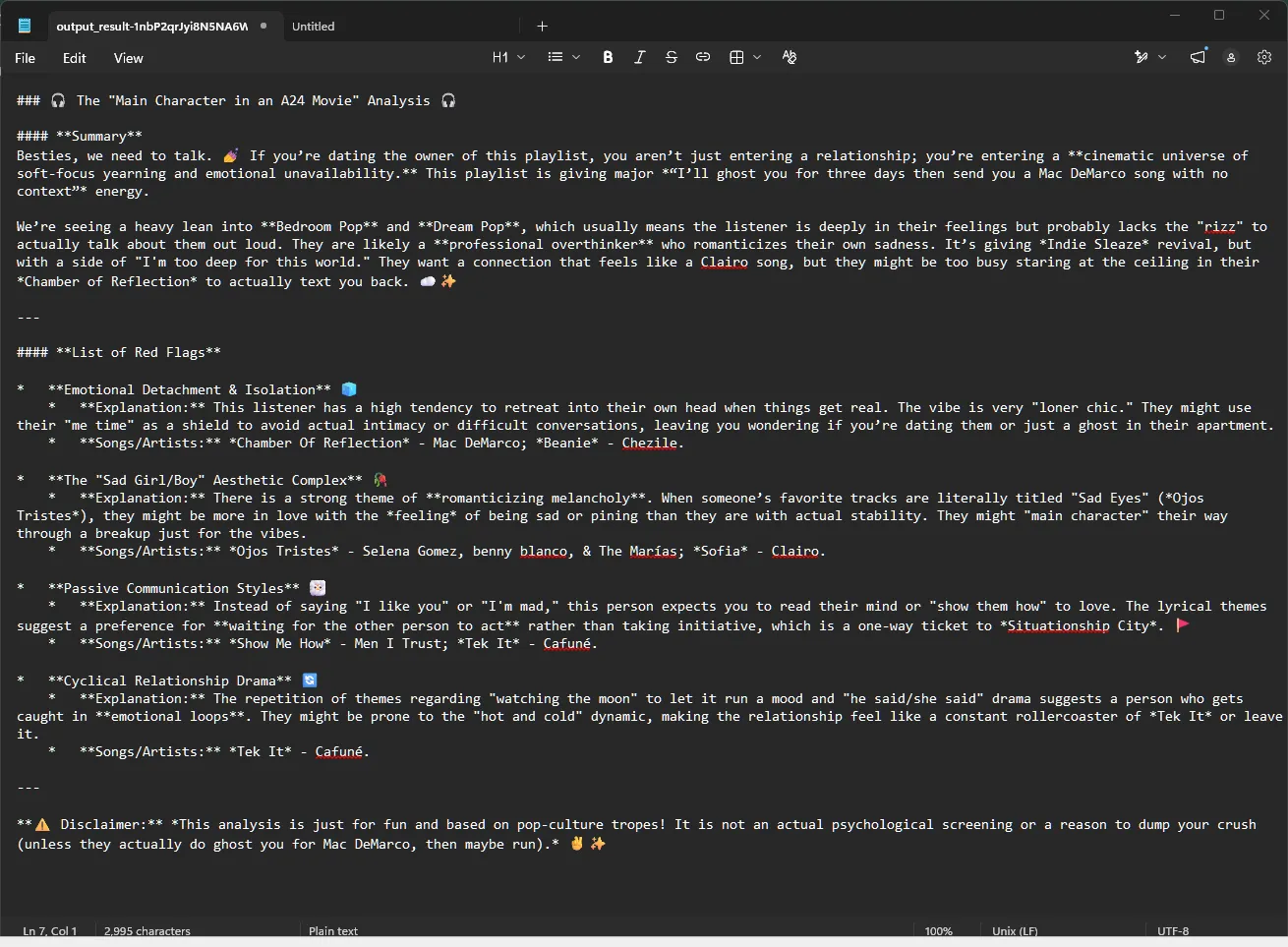
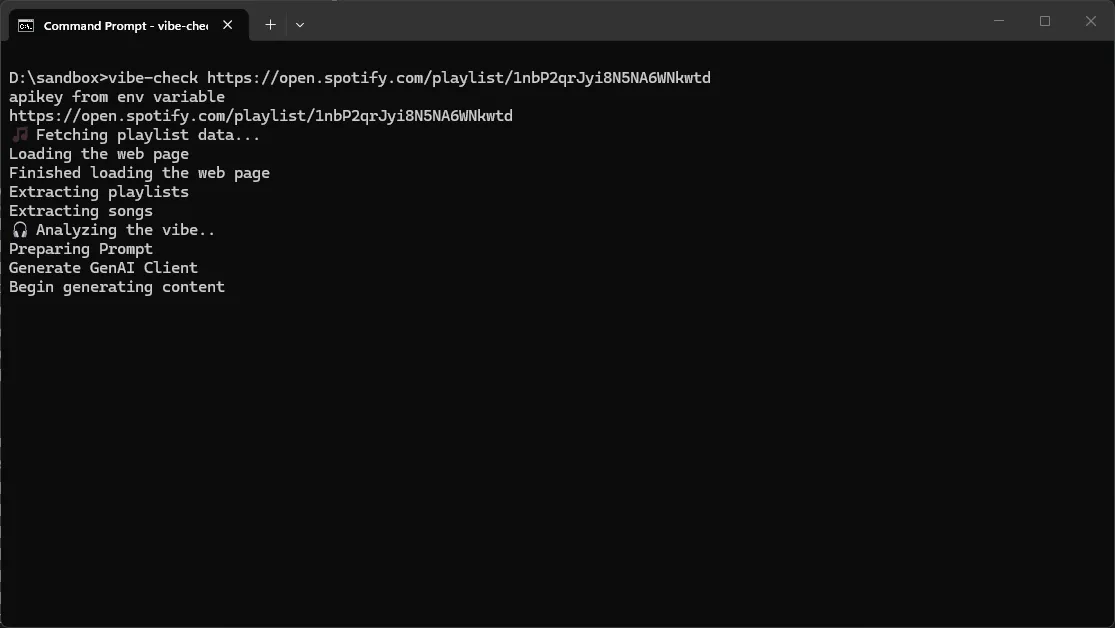
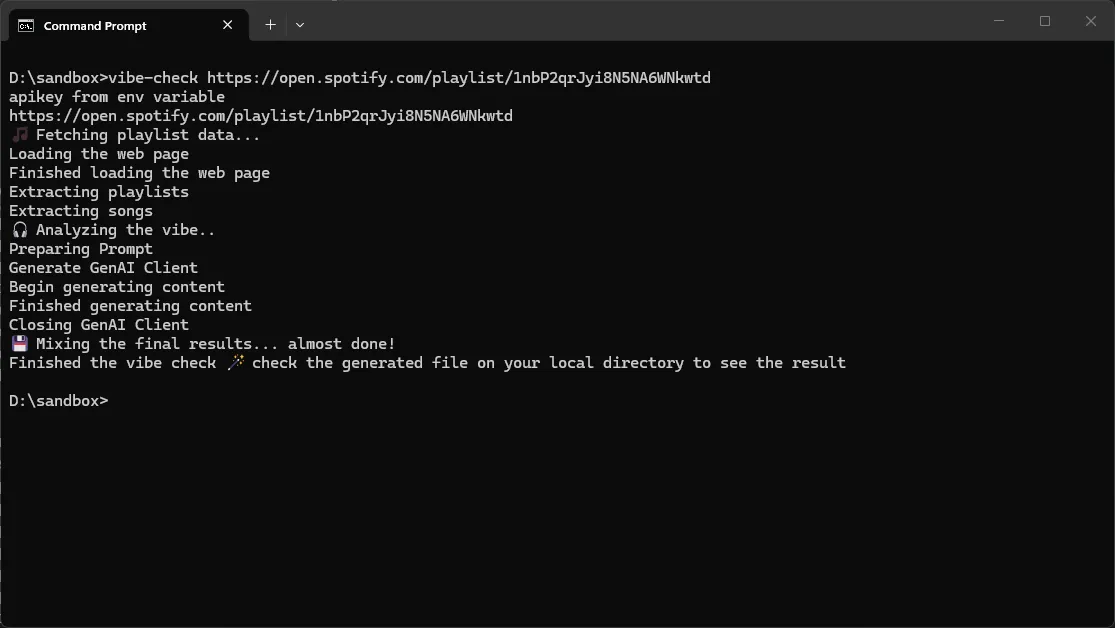
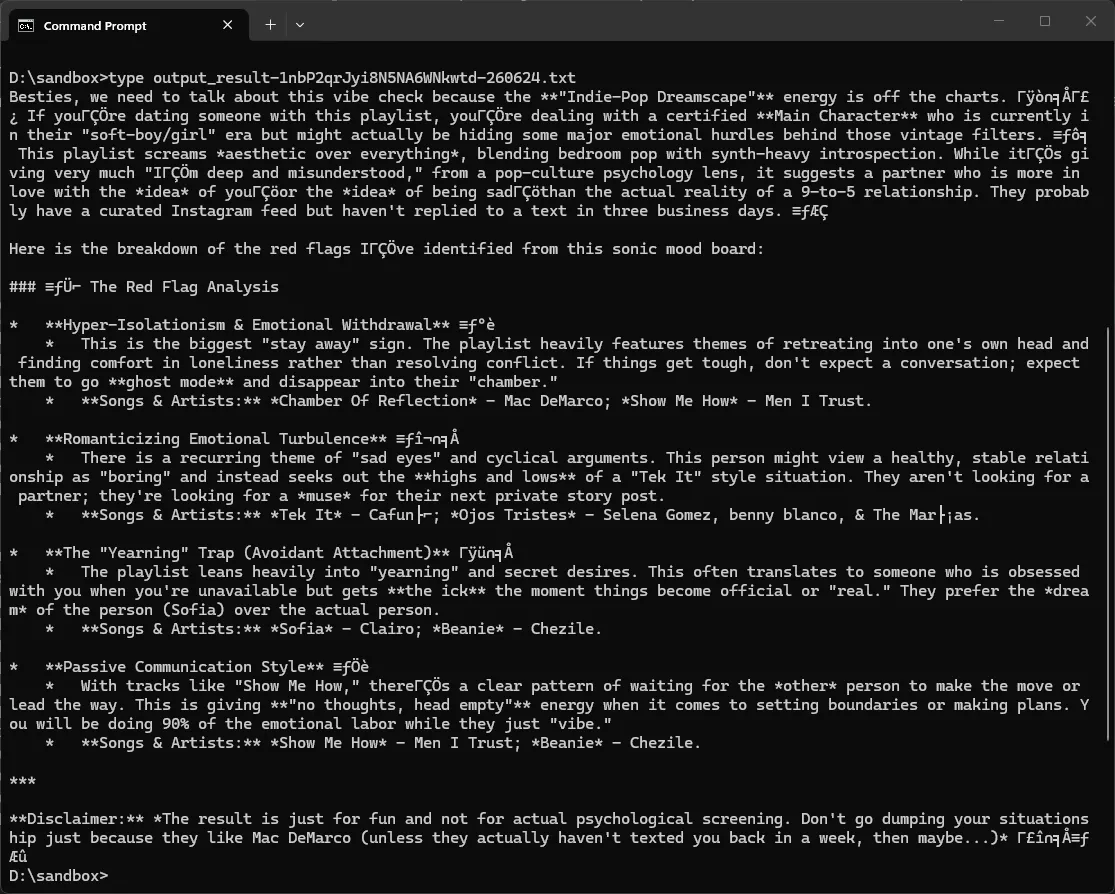
Drop in a public Spotify playlist URL, and the app scrapes the songs, runs them through a Gen AI model, and generates a “dating red flag” personality report, formatted in Markdown, delivered straight to your terminal or downloaded from a Streamlit UI.
Silly premise, but it was built on a real pipeline. Under the hood it’s a complete end-to-end data flow built from scratch: dynamic web scraping, data cleaning, prompt engineering, and Gen AI integration, all chained together and actually shipped.
Key Features
- Paste any public Spotify playlist URL and get a personality vibe check report
- Gen AI-powered analysis based on lyrical themes, mood, and artist persona
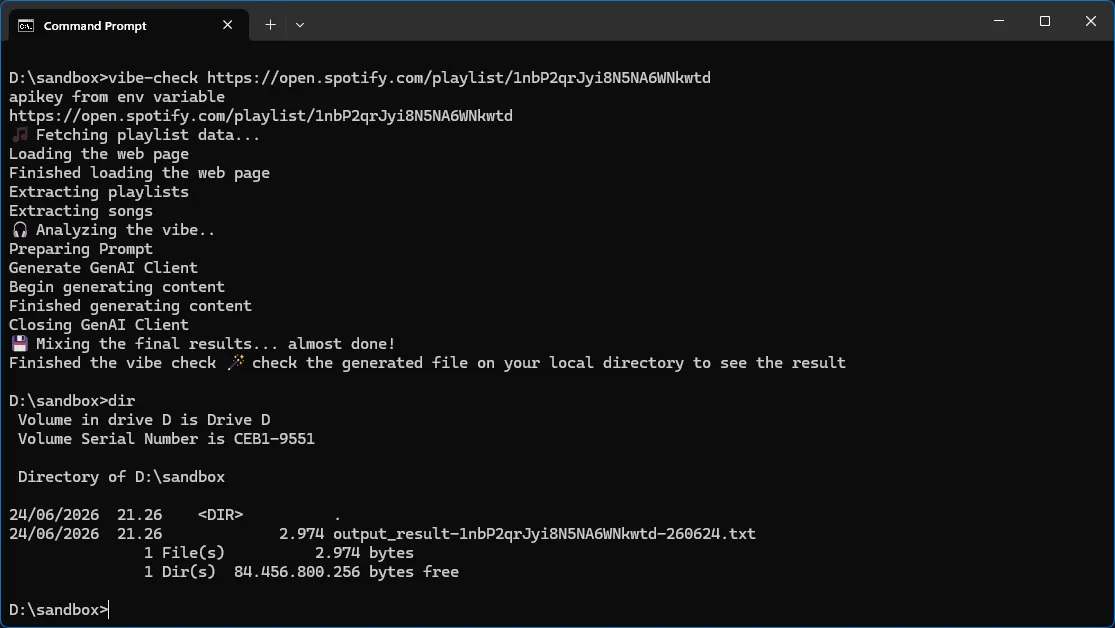
- Output saved as a Markdown file, auto-named by playlist ID and date
- Runs as a CLI tool locally, or through a Streamlit web UI
- Result can be downloaded directly from the Streamlit app
Scope of Work
The scope was deliberately kept tight. The pipeline covers one flow and does it well:
-
What’s in: web scraping → data extraction → data cleaning → prompt building → Gen AI → report generation
-
What’s out: Spotify Web API, multi-playlist support, real-time streaming
Staying narrow was a conscious call, more on that in the How I Built It section.
High Level System Design
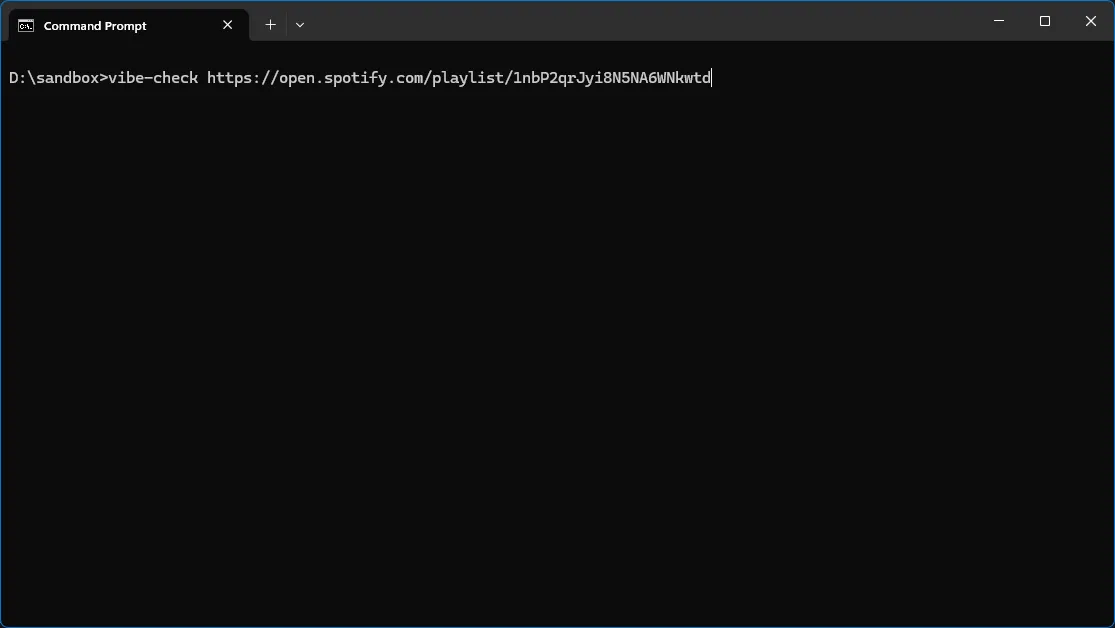
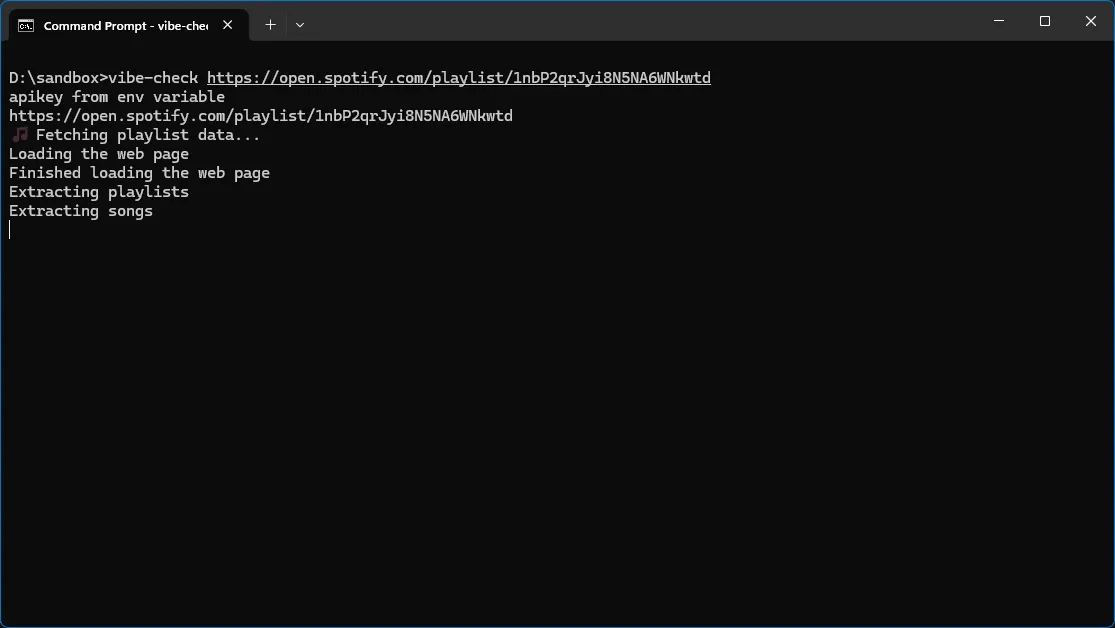
- CLI App: Run with a single command. Pass the Spotify playlist URL as the only required argument. API key can optionally be passed directly via CLI, or loaded from a local environment variable.
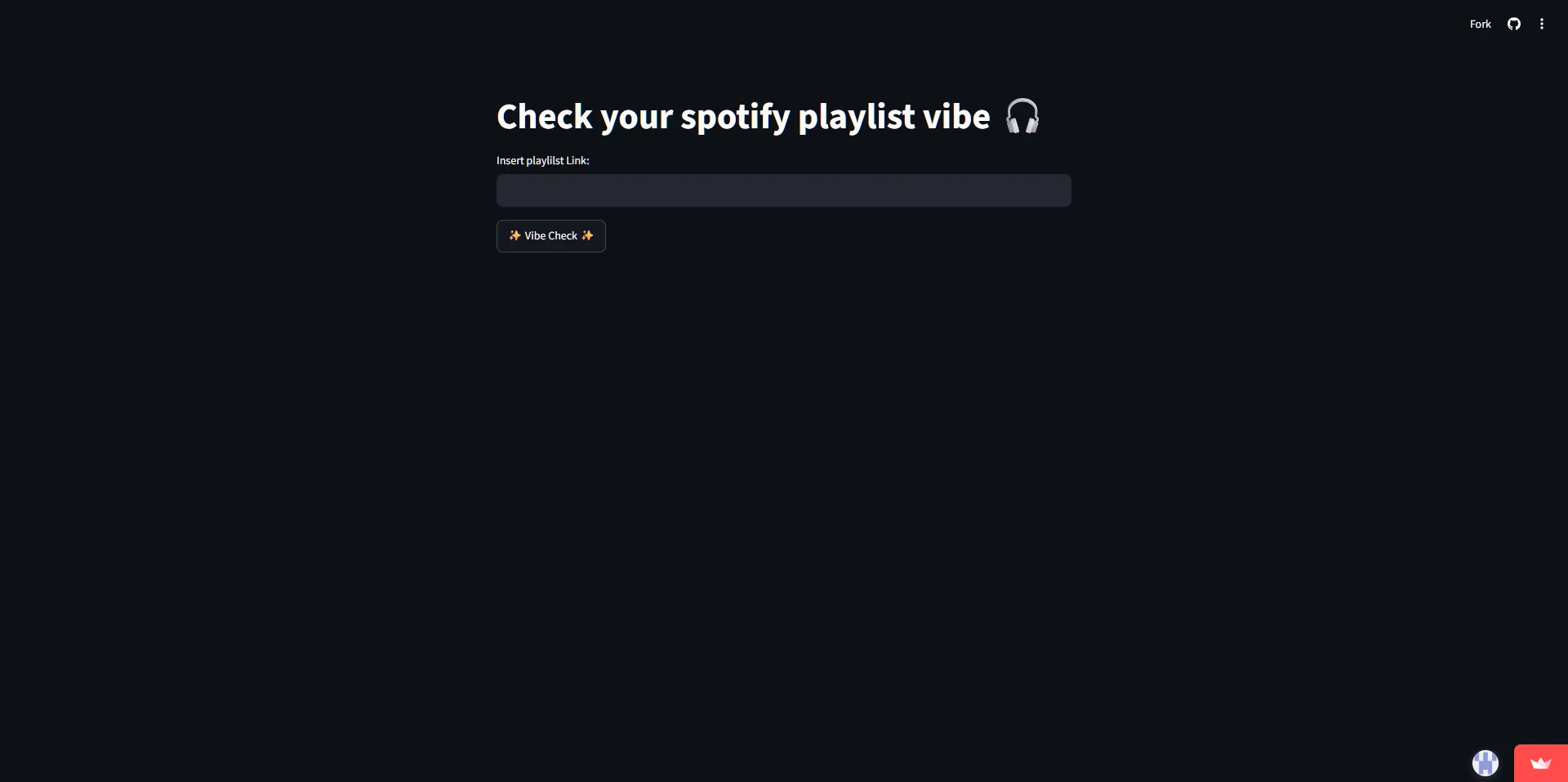
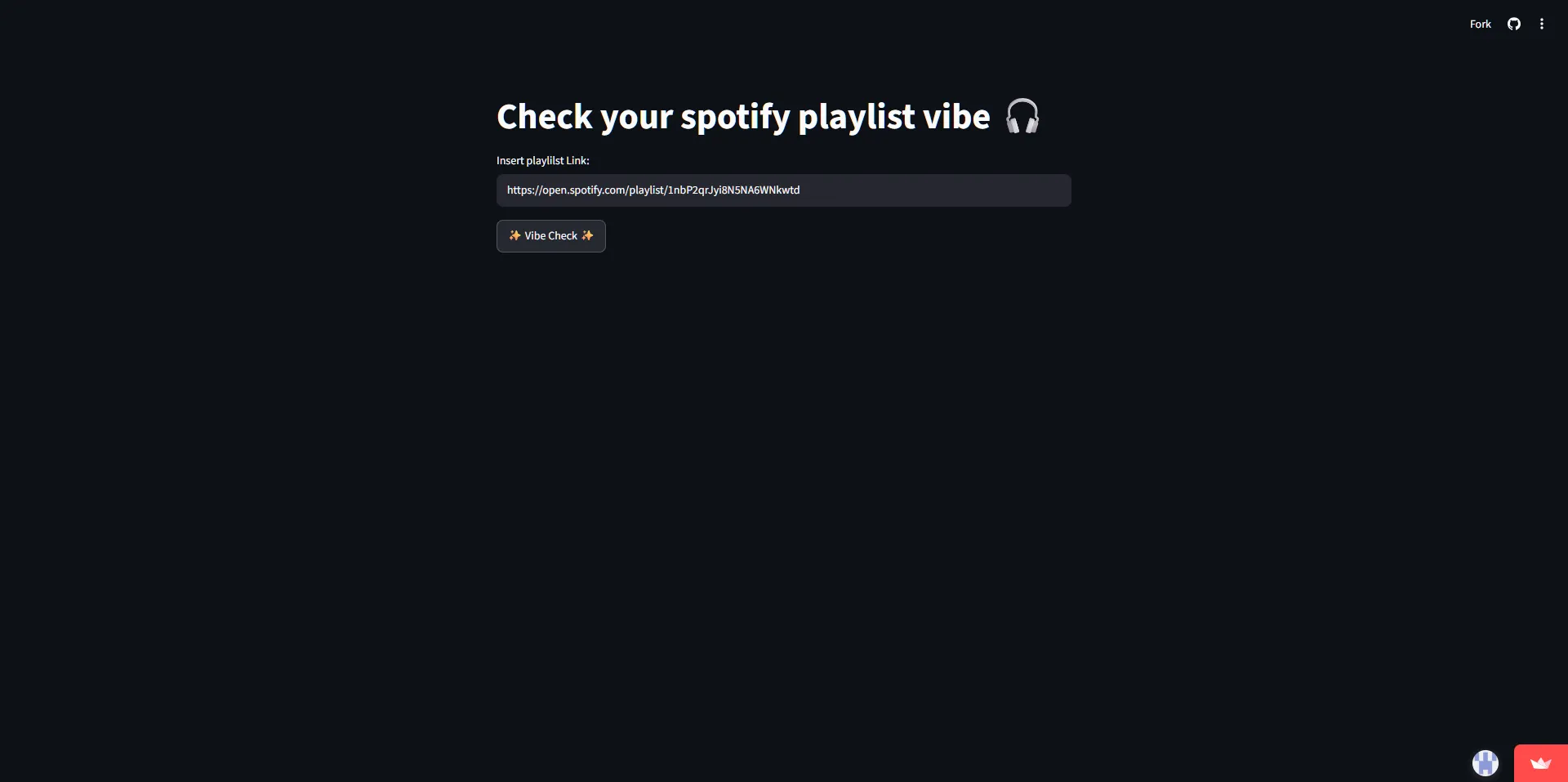
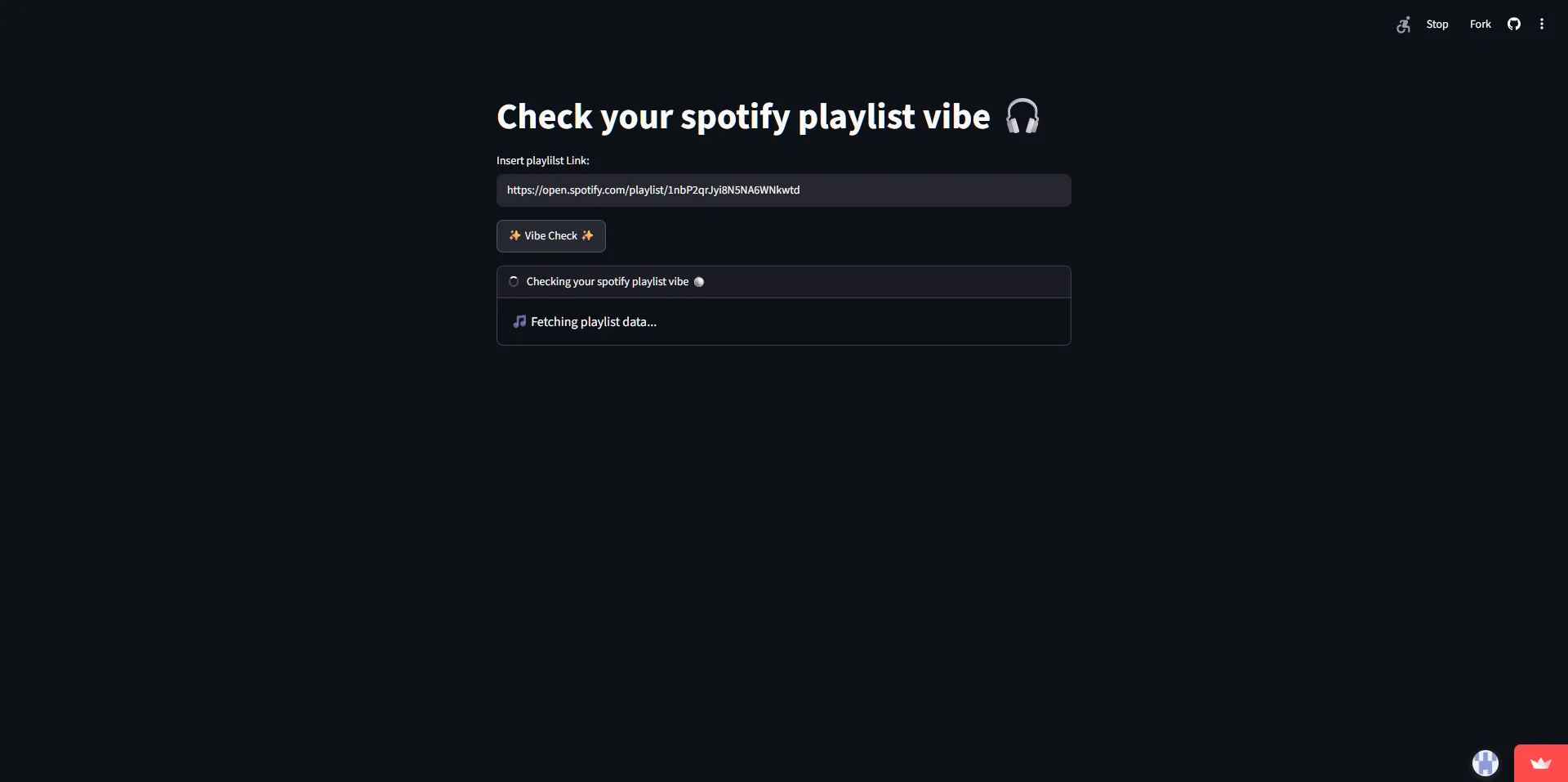
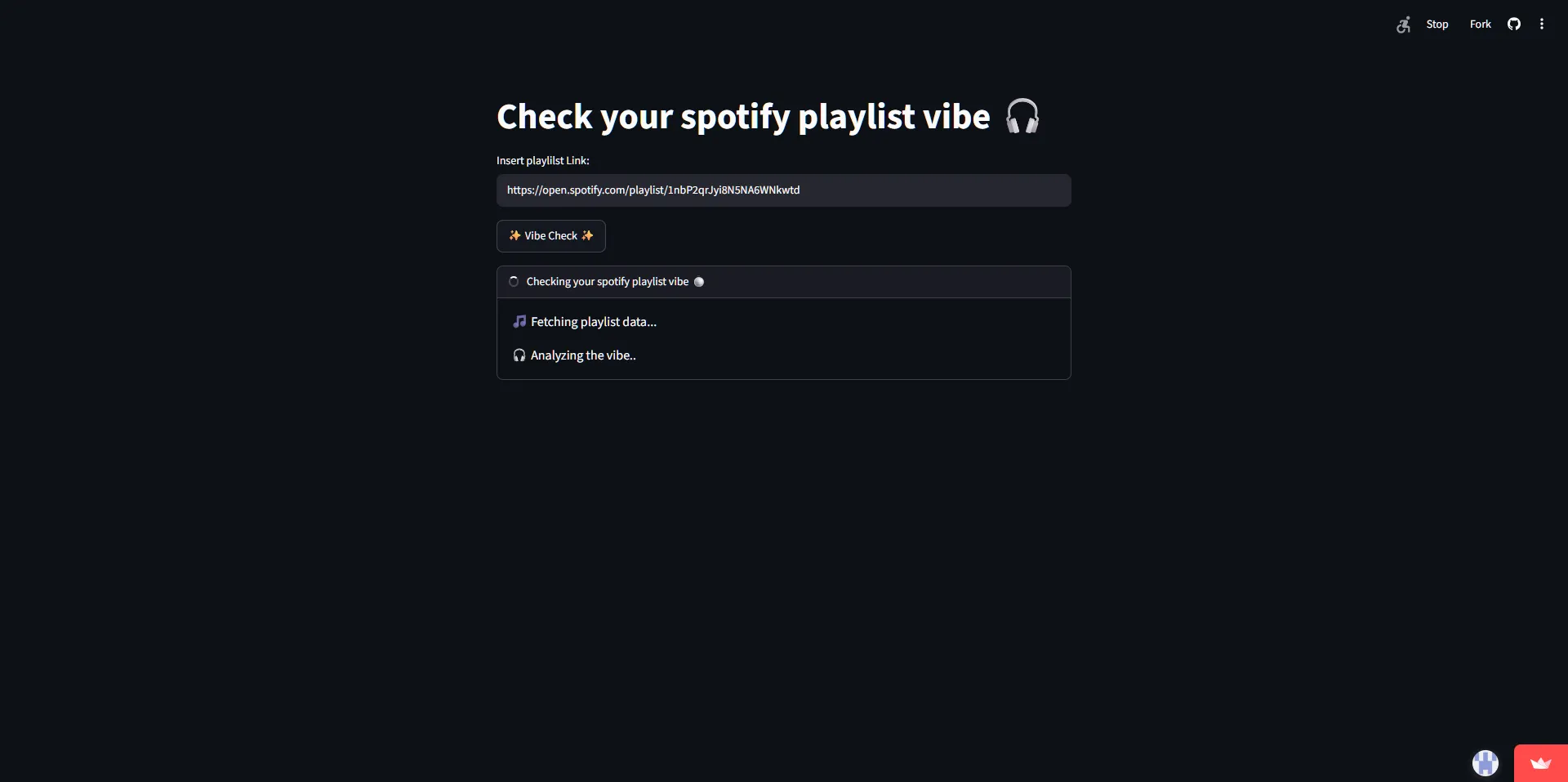
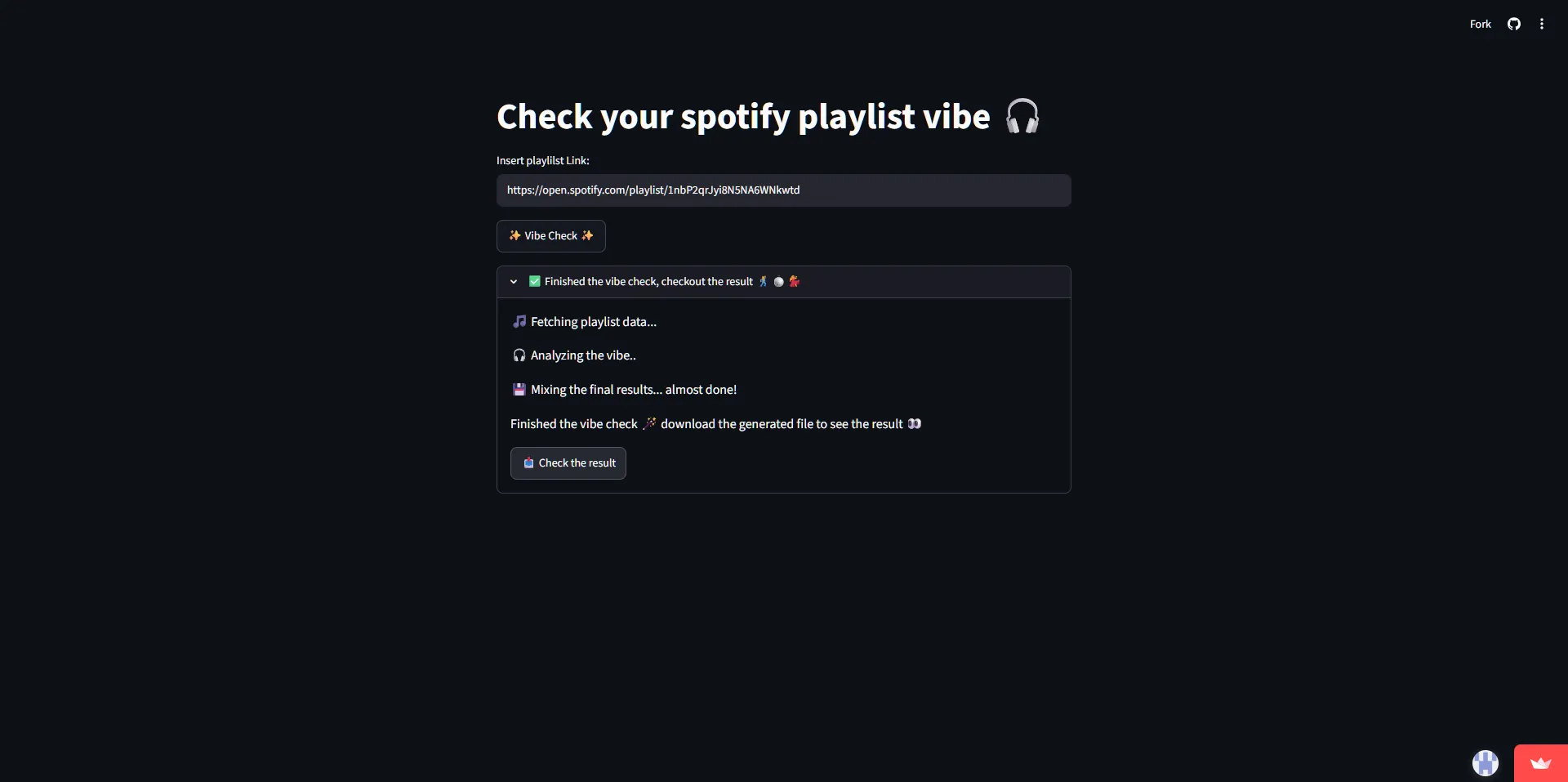
- Streamlit UI: A browser-based wrapper around the same core engine, for those who prefer not to touch a terminal.
Technologies
- Python 3, core application logic and data pipeline
- Selenium, dynamic browser automation and network traffic monitoring
- Google Gemini AI, Gen AI model integration via SDK
- Streamlit, web UI wrapper for the CLI engine
How I Built It
This was actually a resurrection project. The core logic existed from a year or so ago, half-finished, working in parts, but never properly shipped or documented. I finally decided to close the loop.
When I picked it back up, my first instinct was to expand it. The original design had room to pull much richer data, and I started exploring what the Spotify Web API could offer on top of what Selenium could scrape.
Then I stopped myself.
The more I read the extractable data, and the API’s rate limits and token constraints, the clearer it became: expanding would make this slow, broad, and messy. So I made the deliberate call to stay with the scraping-only approach and focus on delivering one complete, well-engineered pipeline rather than an ambitious but incomplete one.
That decision shaped everything. Instead of building outward, I built deeper, tightening the scraping logic, cleaning the data more carefully, and spending real time on the prompt and system instructions until the AI output actually said something interesting.
The Selenium scraper is also worth noting specifically: rather than parsing the dynamic DOM, it inspects the underlying API responses triggered during the page load. By bypassing the visual layer and fetching data directly from the network traffic, this approach demonstrates a more advanced, real-world understanding of how modern web applications deliver data
Before hardcoding anything related to the Gen AI client, I took a detour. I stopped writing code entirely and moved the experimentation into Google AI Studio, Google’s GUI playground for Gemini. I fed it the cleaned playlist data directly from the pipeline and spent time tweaking the system instructions, base prompt, temperature, and other parameters until the output consistently felt right. Having a visual interface to iterate quickly made a real difference, it’s much faster to tune a prompt in a playground than to re-run a script every time.
Even with the right tools, the harder part was still getting the AI to sound like an actual person, not a corporate wellness report. The first few outputs were technically correct but painfully stiff. Useful, maybe. Fun to send to your friends at midnight? Absolutely not. So I went down a rabbit hole until the output started to feel less like a LinkedIn summary and more like something you’d say to a friend over coffee. The goal was Gen Z energy: casual, a little chaotic, the kind of language my friends and I actually use when we’re bantering. Only after the results were where I wanted them did I bring the final configuration back into the codebase.
At some point I paused. The Gen AI exploration felt done, and shipping it wasn’t really on my mind yet. It sat there, working but unpolished, until I decided to actually finish it. By the time I picked the project back up, what was left was making it actually shippable: packaging the core engine as a proper CLI tool and wrapping it in a Streamlit UI so my friends could use it without touching a terminal.
The Product
UI experience for the Casual Clickers
Checkout the app in action:

CLI experience for the Command Line Wizards
Challenges
- First time building a proper CLI app in Python, packaging, entry points, and distribution were all new territory
- Coming back to Python and Selenium after 7+ years of not using either professionally (last touched in college)
- Spotify’s web page is fully dynamic, standard DOM scraping returned nothing useful in my case. On top of that, once the network traffic approach worked, the raw API response was a deeply nested, complex data structure that took serious analysis to navigate.
- Prompt engineering is harder than it looks, finding the right system instructions, model parameters, and prompt structure to get consistently useful Gen AI output took real iteration
- Sandbox API key with limited quota meant I had to be efficient with every test run
Solutions
- Treated every wrong turn as data, not failure, if I was wrong, I learned something; if I was right, I moved faster
- Read up, went deep on documentation and forums until the gaps were filled, most problems have already been solved by someone, somewhere; the key is reading carefully and documenting the fix for yourself
- After researching, I found that Selenium could listen & capture network traffic as the page loads, a more technical approach, but the right one for a dynamic site like Spotify’s web page. From there, it was a matter of carefully mapping the response structure and writing extraction logic that pulled only the data the pipeline actually needed.
- Committed to constraints early: dropped the Spotify Web API expansion and stayed focused on what Selenium could deliver cleanly
- For prototyping, only fetched the first page of data before scaling up, crucial for keeping token usage under control during testing
Lessons Learned
The hardest part of this project wasn’t the AI integration or the Selenium scraper. It was deciding what I actually wanted the output to look like, before writing a single line of code.
With Gen AI, the model will give you something no matter what. The question is whether that something is what you meant. The gap between “I want a personality analysis based on this playlist” and a genuinely useful, well-structured report is almost entirely a prompt engineering problem, and prompt engineering is almost entirely a requirements problem.
Once I had a clear mental model of the report I wanted, the sections, the tone, the reasoning format, the level of specificity, the AI part became straightforward. Getting there took several iterations of test outputs, adjusting system instructions, and tuning parameters until the results felt right.
The same instinct that makes a good requirements doc makes a good prompt. Know what “done” looks like before you start.
The hard part isn’t the AI. It’s knowing what you want before you ask.
This project was also a reminder that the best things to build are the ones you actually want to use, or in this case, want your friends to use. Nothing validates a side project faster than friends sending you their results at midnight with some crying-laughing-skull emojis .